

 By
By Full Setup Guide + 12 Use Cases for Traders
You know that feeling when it’s 6:30 AM, you’ve got coffee in one hand, and you’re scrolling through 50 charts trying to figure out which name is going to actually move today? Yeah. We’ve all been there.
Here’s the thing about using TradingView. It never opened up a public API. So for years, if you wanted AI to actually look at your charts, your options were… not great. Copy-paste a screenshot into ChatGPT or other AI models. Manually type out indicator values. Build something janky with screen scraping. None of it worked well.
You can connect Claude to your TradingView Desktop app using an open-source bridge built for the Model Context Protocol. The project is on GitHub as the TradingView MCP bridge.
This bridge links Claude to your live charts through your local desktop session. You’ll need to install the TradingView Desktop app, run the MCP server, and connect it to Claude Code.
There’s a detailed walkthrough in this TradingView MCP setup guide. Once it’s set up, Claude can read price data, indicators, and chart structure straight from your open charts.

At first, I thought it was just another one of those “AI trading tools” that sound cool but don’t actually offer any practical use case…
But after testing out this MCP tool for a few weeks, it’s one of the few tools that actually saves time without messing with your process.
No API keys needed for basic stuff. You don’t have to mess with custom indicator code either—just start. So in this post, I’ll break down:
- What is Claude + Tradingview MCP really?
- How to set it up quickly
- The use cases that are actually worth your time as traders
- The TradingView MCP limitations today
- Who this is for
- 3 Steps to get started
- Frequently asked questions
What is Claude + TradingView MCP in plain English?
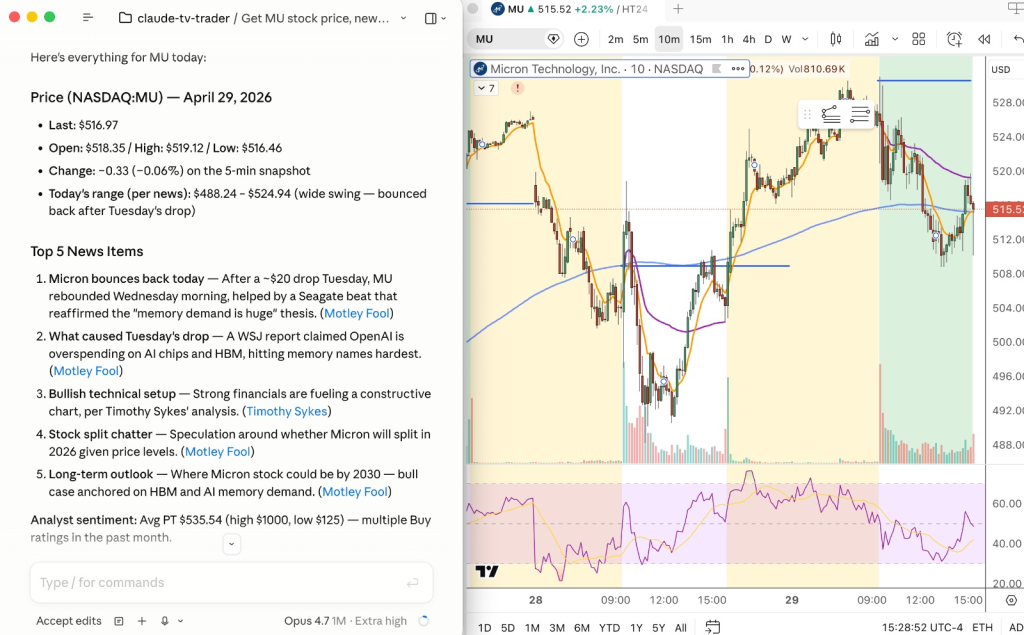
Let’s not overcomplicate this. Claude + TradingView MCP basically lets your AI assistant work directly with your live TradingView charts. No more pasting screenshots or fumbling with exports—Claude gets the real chart data.
MCP is basically a bridge that lets Claude look at your TradingView charts.
TradingView Desktop is built on Electron, which uses the same browser engine as Chrome. That means there’s a built‑in debug channel, and when you turn it on at launch, you open up a controlled access point.
The MCP server grabs what’s on your chart through that access point and passes it to Claude as structured data. This is basically a workaround… but it works.
Claude can see all sorts of details, like:
| Data Type | Examples |
|---|---|
| Market data | Symbol, timeframe, OHLC candles |
| Indicators | Moving averages, RSI values, custom studies |
| Drawings | Trendlines, levels, chart notes |
| Strategy data | Backtest results from Strategy Tester |
This all runs locally on your own machine. It goes through a local port, so your chart data never leaves your computer.
Just a heads up—TradingView doesn’t officially support this setup. Updates could break things, so a lot of folks stick with a stable desktop version once it’s working right.
You’ll still need a paid TradingView plan. MCP doesn’t unlock new features, it just lets Claude read the chart data you already have access to.
Why this actually matters for traders
A few reasons this is a bigger deal than it sounds:
- No coding required for most of it. You don’t need to learn Pine Script just to ask Claude to scan your watchlist for gappers. You type the request in plain English.
- Claude sees what YOU see on the charts. Your indicators, your timeframes, your drawings, your watchlists. Whatever your setup looks like, that’s what Claude reads. This just makes things easier.
- Your indicator drawings are readable. This one surprised me. If you have a paid or protected indicator that draws horizontal levels, labels, or a stats table on your chart, Claude can read those drawings as structured data. Ask it “what levels is my session indicator showing?” and it tells you. Works even on closed-source scripts, because the drawings are already on your screen.
- It’s conversational. You interact with Claude just by chatting. Here’s how it looks in real life. Ask Claude, “Scan for stocks up 3% with high volume”, and it will return a filtered list based on your criteria.
How to set it up (takes ~5 minutes)
Here’s what you’ll need before you dive in:
- TradingView Desktop with a paid subscription plan: Yes, this has to be the desktop app, not the browser version. The browser version doesn’t have the Electron debug interface.
- Node.js 18 or higher installed on your machine.
- Claude. Either Claude Code (the CLI) or Claude Desktop with MCP support enabled.
- The open-source MCP server.
The actual install is one prompt only. Open Claude and paste this:
“Install the TradingView MCP server. Clone and explore https://github.com/tradesdontlie/tradingview-mcp, run npm install, add to my MCP config at ~/.claude/.mcp.json, and launch TradingView with the debug port.”
Claude takes care of cloning, installing dependencies, updating your config, and launching the app. Pretty smooth.
After it’s done, check the connection by typing:
“Use tv_health_check to confirm TradingView is connected.”
If you get a green light back, you’re done.
A few things that trip people up:
- TradingView has to be the Desktop app. The web version won’t work.
- The
--remote-debugging-port=9222flag has to be on at launch. The install handles this, but if you launch TV manually later, the flag has to be there. - If you have other Electron apps running with debugger ports open, you might hit a port collision. Easy fix: change the port in the config.
- Pin your TradingView Desktop version. As mentioned, this is built on undocumented internals.
12 Practical Ways Traders Use Claude + TradingView MCP
Okay, this is the part where this tool actually becomes useful for traders.
What do you actually DO with it once it’s installed? Here’s a list pulled from my own setup plus what I’ve seen other traders cooking up.
Market Scans, Watchlists, and Chart Review Without Coding
1. Automate your premarket gap scan
Set a scheduled scan before the open. For example:
- Stocks gapping up 3% or more premarket
- At least 300K shares in premarket volume
- Alert sent as a desktop notification
- Results saved to a JSON file
By the time you sit down, you already have a short list of names to check out.
2. Run intraday momentum scans with relative volume
During market hours, you can scan a watchlist for:
- Price up 3% or more on the day
- Relative volume above 2x
- Strong trend structure on lower timeframes
No more flipping through charts one by one. The AI checks the list and flags the leaders for you.
3. Detect major moving average shifts
You can scan for stocks that:
- Closed above the 200-day moving average
- Broke above it for the first time in weeks
- Showed higher-than-average breakout volume
This way, you spot potential trend changes without having to build your own custom screeners.
4. Compare multiple timeframes in seconds
Instead of switching between tabs, just ask Claude to review:
- 5-minute
- 1-hour
- Daily
You get a quick answer on whether trends align or conflict. That little check can help you avoid trading against a higher timeframe trend.
5. Build custom watchlists from plain English
Describe what you want:
- Large-cap semiconductor stocks
- High daily dollar volume
- Strong retail interest
Claude generates a focused list for you. No more copying random lists—now you’re building your own.
6. Read levels from paid or protected indicators
If your indicator draws lines, labels, or stats tables on your chart, Claude can read what appears on screen. This works even when the script is protected, since the values are already displayed visually.
You can ask things like:
- What resistance levels are plotted?
- What numbers appear in the stats panel?
- What is the session high and low?
And you get the data instantly. This is a huge time saver for traders.
7. Run a structured pre-trade checklist
Before entering a position, you can confirm:
- Is RSI overbought or oversold?
- Is volume expanding on the current candle?
- Is price above the 200-day average?
- Is there clear support below entry?
Claude reviews the chart and gives direct answers. It helps you cut down on missed steps and those classic emotional decisions.
Some traders describe this kind of setup as a major workflow shift in how they interact with charts.
Backtesting, journaling, and skill building
Once you move past scanning, you can use Claude to test ideas and improve your process.
8. Test entry rules without coding Pine Script
You describe your rules in plain language:
- Daily close above 200 SMA
- Price above 8 EMA
- 3% gap up
- 5-minute close above prior day high
- Exit at end of day
Claude applies those filters to live or historical data and tells you which trades would have triggered. No need to write or debug scripts.
9. Automate your trade journal
After you close a trade, you can:
- Provide entry and exit timestamps
- Pull the relevant chart
- Mark trade levels
- Generate a short performance note
Claude can capture a screenshot and write a brief summary of what worked and what didn’t.
This way, you build a consistent journal without spending 20 minutes per trade.
10. Practice with replay mode and structured logs
In TradingView replay mode, you step through historical data bar by bar.
Claude can:
- Log indicator values at each bar
- Save entries and exits
- Export structured data in JSONL format
- Track your decisions
After a few sessions, you’ve got measurable practice data instead of just relying on memory.
Pine Script and advanced workflows (for the more technical traders)
If you’re more technical, you can push the system further.
11. Develop Pine Script with AI-assisted compile loops
You describe the indicator or strategy you want. Claude:
- Writes the Pine Script
- Inserts it into the Pine Editor
- Compiles it
- Reads error messages
- Fixes issues
- Recompiles
This loop continues until the script runs cleanly. No more switching between editors or searching error messages manually. Development just feels faster and less frustrating.
12. Stream your live chart data into your own tools
You can stream every pane of your TradingView layout as structured JSON data in real time.
From there, you can:
- Pipe data into Python or Node
- Build a custom dashboard
- Create advanced alert systems
- Run external analytics
Your TradingView Desktop basically becomes a live local data feed for your own software.
For developers, this creates a bridge between charting and automation.
What the MCP can’t do (yet)
I want to be straight with you about the limits, because it’s not perfect.
- It doesn’t place trades. It won’t trade for you. And honestly, that’s a good thing.
- Again, it’s not officially approved by TradingView. A TradingView update could break it. Pin your version if you’re going to lean on it.
- Some chart automation has bugs right now. Specifically, batch operations across multiple symbols can fail. The workaround is to run them sequentially, which adds about 3 seconds per symbol. For a 15-name watchlist that’s fine. For the full S&P 500 it takes 25 minutes.
- It won’t tell you if a trade will work. It just gives you better context. You still make the call.
- Claude usage isn’t free. There’s a decent free tier and paid plans for heavier use. I personally use the $200 a month Claude Max plan.
Who is this actually for?
This fits if you review charts every day and make active trade decisions. It’s especially helpful for traders who scan lots of markets or switch between short‑term and swing setups.
- Active discretionary traders who track price action across many charts
- Traders who avoid Pine Script and want simple, no‑code workflows
- Traders who are technical and want a faster build‑test cycle
- Educators and content creators prepping lessons, examples, or market breakdowns
- System builders wanting a structured way to test and refine ideas
If you only check charts once or twice a week, honestly, you probably won’t get the full value.
But, if you’re at your screen every day, scanning, journaling, reviewing…
Then yes, this is a useful trading tool to have!
Ready to try it?
Three things to grab:
The next post in this series walks through how to wire this up to a broker so the AI can actually execute trades for you. If you want it in your inbox the day it drops, join the free newsletter and you’ll be first to know.
And if you want to go deeper on the day-trading side (real-time community, daily trade reviews, mentorship), the Humbled Trader Community is where I spend most of my time these days.
That’s it. Go play with it. Let me know what you build to optimize your trading process!
Not financial advice. Not affiliated with TradingView Inc. or Anthropic. Some links are affiliate links.
FAQ
Can I use ChatGPT instead of Claude with TradingView?Not yet. As of right now, ChatGPT doesn’t natively support MCP the way Claude does. The TradingView MCP server is built specifically for Claude. ChatGPT may add MCP support eventually, but for now, Claude is the play.
Does this work on TradingView’s web version?No. Desktop only. The whole thing depends on the Electron debug interface, which the web version doesn’t have. And you will need a paid Tradingview plan.
Is my data safe?Yes. Everything runs locally on port 9222 on your own machine. Your chart data doesn’t go to Anthropic, TradingView, or anyone else unless you explicitly send it (like by pasting a screenshot into a Claude chat).
How much does it cost?You need a TradingView subscription (any paid tier works). Claude has a free tier and paid plans. The MCP server itself is free and open-source.
Can it actually trade for me?Not directly. It can read and analyze, but execution requires wiring it up to a broker. That’s a future post.
Is this allowed under TradingView’s terms of service?The data this tool surfaces is data you already have access to as a paying TradingView subscriber, displayed in an app running on your own machine. What you do with that data programmatically is something you should reason through against TradingView’s ToS yourself. Not legal advice.
Will this break with TradingView updates?Possibly. TradingView could change the internal APIs the MCP relies on at any time. Pin your TradingView Desktop version for stability.
The post How to Use Claude AI with TradingView MPC appeared first on Humbled Trader.
